
- Skill
- Beginner
- Tools
- Terminal, nano, Docker Compose
- Web port
- 5678
- Needs
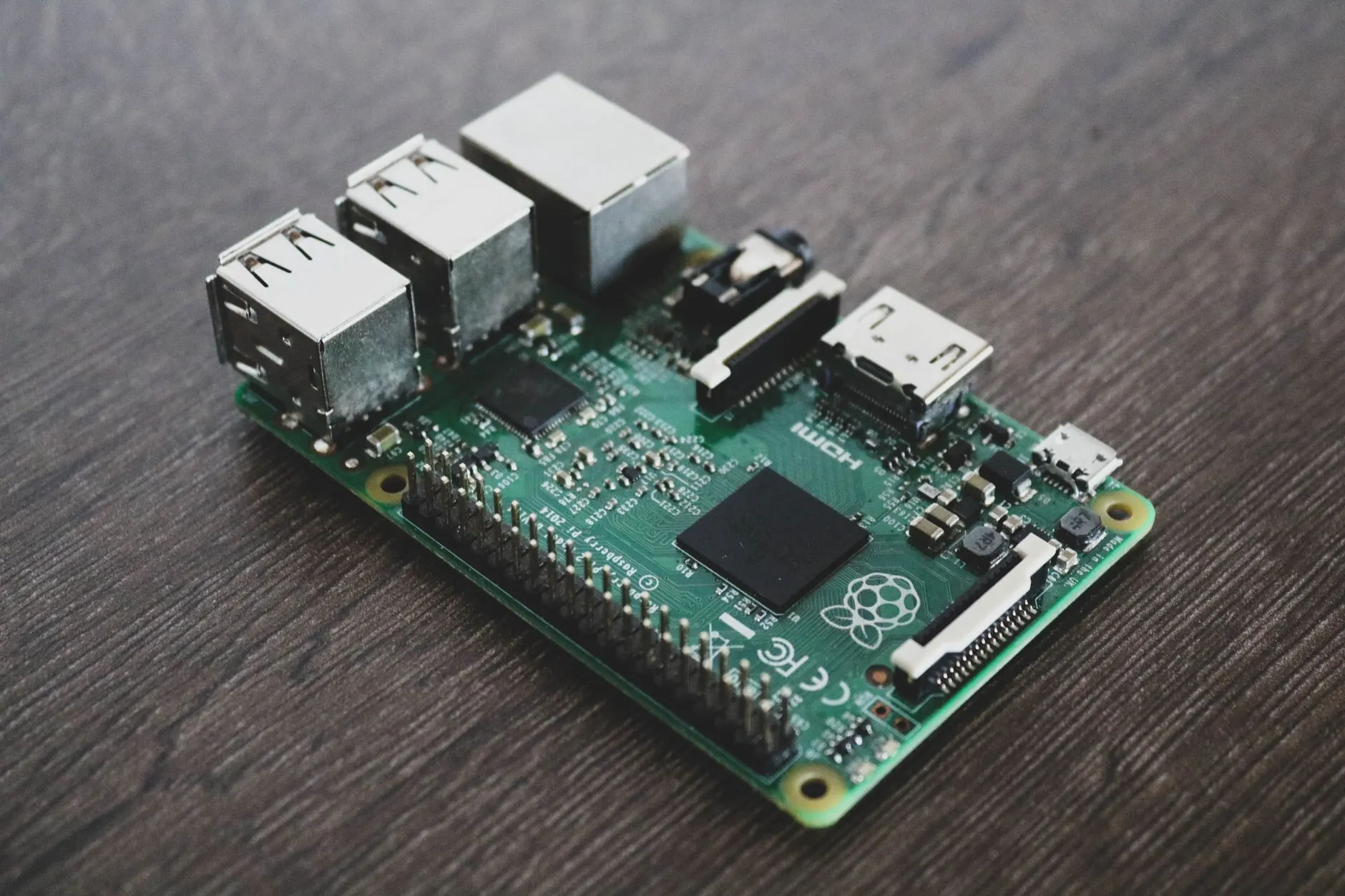
- 64-bit Raspberry Pi OS, Pi 3 or newer
In about an hour, you can have your own copy of n8n running on a Raspberry Pi, ready to build automations from a browser anywhere on your home network. Most of that time is typing a few commands and waiting for Docker to download the image.
What n8n does
n8n is a self-hosted workflow automation tool, often compared to Zapier and Make. You build a workflow by connecting nodes on a canvas. Each node fetches some data, changes it, or sends it somewhere else, and there are hundreds of built-in integrations.
A workflow might check the weather every morning, watch an RSS feed for new posts, or take a webhook from one app and pass the details to another. On a Pi, your workflows and credentials stay on your own hardware, and there is no limit on how often they run.
n8n calls itself "fair-code," not open source. It is free to self-host under its Sustainable Use License, which allows personal use and use within your own business but does not let you sell n8n to others as a service. The license is not OSI-approved.
What you will need
- A Raspberry Pi 3 or newer running the 64-bit version of Raspberry Pi OS (n8n only provides Docker images for 64-bit systems). A Pi 4 or 5 with at least 2GB of RAM is the better choice, since n8n is a fairly large application.
- A micro SD card and a power supply
- An Ethernet cable or Wi-Fi
- Docker already installed on the Pi
- Another device on your network with a web browser
- Optional: a case, USB keyboard and USB mouse
Step by step
-
Update the system. Run
sudo apt update, thensudo apt upgrade. If asked to continue, type Y and press ENTER. -
Confirm Docker is installed. Run
docker --version. You should see a line likeDocker version 29.9.1, build dfc520d. -
Make a folder for n8n. Keeping it in
/opt/stacks/works well, especially if you plan to use Dockge:sudo mkdir -p /opt/stacks/n8n/dataThe
-poption creates the n8n folder and the data folder inside it in one go. The data folder holds your workflows, credentials and settings. -
Hand the data folder to the n8n user. The container runs as a user called "node" with the ID 1000, not as root:
sudo chown 1000:1000 /opt/stacks/n8n/dataSkip this and n8n cannot save its files. It will keep restarting, and its logs will show "EACCES: permission denied, open '/home/node/.n8n/config'".
-
Move into the folder. Run
cd /opt/stacks/n8n. Every remaining command runs from here. -
Find your Pi's IP address. Run
hostname -I. The first address listed (for example,192.168.0.143) is yours. The second belongs to Docker's own network. Because n8n builds links from this address, set a static IP so it does not change. -
Write the Compose file. Open it with
sudo nano compose.yamland enter:services: n8n: image: n8nio/n8n container_name: n8n restart: unless-stopped ports: - 5678:5678 environment: - GENERIC_TIMEZONE=<TIMEZONE> - TZ=<TIMEZONE> - N8N_WEBHOOK_URL=http://<IPADDRESS>:5678/ - N8N_SECURE_COOKIE=false - N8N_DIAGNOSTICS_ENABLED=false - N8N_ENFORCE_SETTINGS_FILE_PERMISSIONS=true volumes: - ./data:/home/node/.n8nReplace both
<TIMEZONE>entries with your tz database time zone, such as Australia/Hobart or Europe/London. Replace<IPADDRESS>with your Pi's address, for examplehttp://192.168.0.143:5678/. Save and quit with CTRL + X, then Y, then ENTER. -
Start n8n. Run
docker compose up -d. The-doption runs it in the background. The first time, Docker downloads the image, which is quite large, so this may take several minutes. -
Check that it is running. Run
docker compose ps. The status should start with "Up" and should not keep resetting every few seconds. On first start n8n sets up its database, so give it a minute. -
Open n8n and create the owner account. In a browser on any device on your network, go to
http://<IPADDRESS>:5678, such ashttp://192.168.0.143:5678. Set up the owner account. It exists only on your Pi, and you will use its email address to sign in.
What each setting does
The file uses n8n's official image and serves the web interface on port 5678. With unless-stopped, Docker restarts n8n after a crash or a reboot unless you stopped it yourself.
Time zone. GENERIC_TIMEZONE sets the zone for scheduled workflows, and TZ sets the clock inside the container. Matching them means a workflow set for 7 am runs at 7 am your time.
Webhook URL. N8N_WEBHOOK_URL tells n8n the address it can be reached at when it shows you a webhook or form address. Without it, those addresses start with http://localhost:5678, which only works on the Pi itself.
Diagnostics. By default n8n reports your version, which nodes you use, error messages and the domain names your workflows connect to. It does not send the data passing through your workflows or your credentials. Setting N8N_DIAGNOSTICS_ENABLED=false stops this reporting.
File permissions. N8N_ENFORCE_SETTINGS_FILE_PERMISSIONS makes sure only the n8n user can read the file holding the encryption key that protects the passwords and API keys you save.
Volume. Everything n8n saves lands in the data folder beside the Compose file, outside the container. Your workflows survive updates, and this is the folder to back up.
Keep it on your home network
N8N_SECURE_COOKIE=false lets you sign in over plain HTTP, but your password and login cookie travel unencrypted, so do not use it on a network you don't trust. Docker opens port 5678 itself, so n8n is reachable even with a firewall such as UFW running. Do not forward this port on your router.
Moving to HTTPS later
Without that setting, opening n8n over plain HTTP shows a secure cookie warning instead of the sign-in page. To sign in over HTTPS instead, put n8n behind NGINX Proxy Manager, Pangolin or a Cloudflare Tunnel, then remove the N8N_SECURE_COOKIE line and change N8N_WEBHOOK_URL to your new HTTPS address.


0 comments
Join the conversation